
What Staff Miss Before Clicking Phishing Links
When you keep watching good people nearly fall for phishing links, it can feel like you are holding the roof up with one hand and answering tickets with the other. The problem is usually not one…
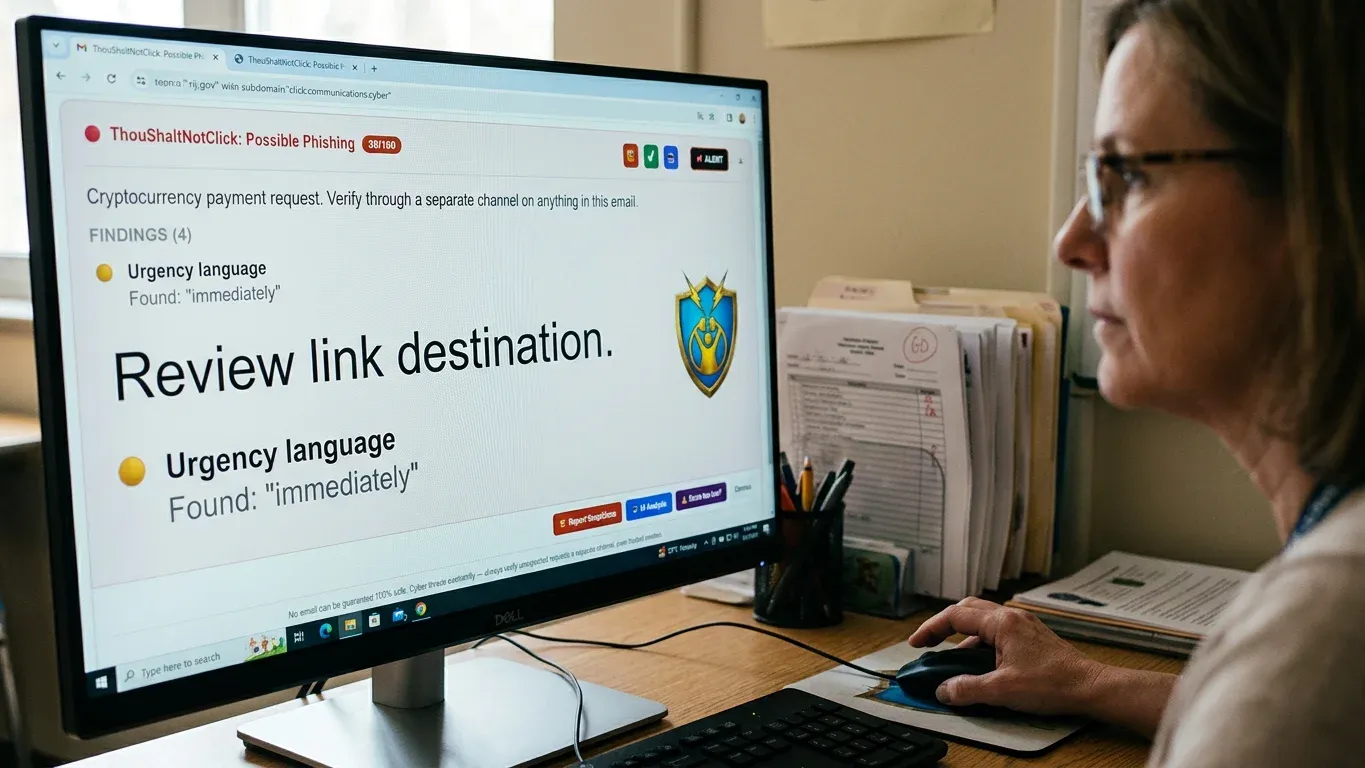
When you keep watching good people nearly fall for phishing links, it can feel like you are holding the roof up with one hand and answering tickets with the other.
The problem is usually not one giant warning sign everyone ignored. Staff miss a cluster of small signals that only become obvious when they pause long enough to compare them:
A familiar sender that feels “close enough”: The trap starts working before the link even gets judged.
A link destination that does not match the story: The real address often tells a different tale than the button does.
Urgency that shortens the pause: The click gets easier when the message makes waiting feel costly.
A normal-looking tool used in an abnormal way: Shared files, e-signature notices, and calendar invites can carry the scam without looking exotic.
A password moment that should stop the workflow: The most dangerous page is often the one that looks like the place staff sign in every day.
A missing second signal: Staff often look for one clue, when the safer read comes from comparing several.
The Click Usually Goes Wrong Before Anyone Checks the Link
Your staff are not waking up hoping to make your day harder. Most risky clicks happen because the message feels routine, the request feels believable, and the person is trying to move the work along.
That is what makes phishing links so aggravating for an IT director. The bad decision often starts before the link is even inspected.
The attacker’s real target is not the inbox. It is the tiny moment between “this looks normal” and “I clicked.”
Think of it like a fake badge at a locked door. If the badge looks roughly right and the person is in a hurry, the lock may never get questioned.
That is the click problem in plain clothes.
A Phishing Link Is Not Just a Bad URL
You need a simple way to explain this without turning every staff meeting into a security lecture.
Definition: A phishing link is a link that tries to trick someone into doing something unsafe, such as entering a password, approving a payment, downloading a file, or giving access to an account.
The link may be inside a button, a shared document notice, a calendar invite, a QR code, or a message that looks like it came from a person they know.
In other words, the URL is only one piece. The setup around it is the bait.
A staff member can spot a strange link and still miss the scam if the story around it feels right.
The Sender Looks Familiar, Which Is Exactly the Problem
The first missed sign is trust that starts too early. Staff see a name they know, a department they recognize, or a vendor they work with, and their guard drops.
Display name: The visible name may say “Finance Office” or “Pastor John,” while the actual sender address tells a different story.
Domain: A lookalike domain may swap letters, add words, or use a believable ending that staff do not notice at a glance.
Context: A message can borrow real workplace language, such as invoices, staff updates, document reviews, or account alerts.
A staff member about to click an urgent diocese email link may not be careless. They may simply recognize the topic and move too fast.
Familiar is not the same as verified.
The Link’s Real Address Tells the Story the Button Hides
The button text is the friendly front door. The actual destination is the alley behind the building.
Staff often read “Review Document,” “Open Secure Message,” or “View Invoice” and never check where the link really goes. That is where mismatched domains, shortened links, redirects, and spoofed pages do their work.
What staff see | What to check | Why it matters |
|---|---|---|
A button that says “View File” | Hover over it before clicking | The visible words may not match the destination |
A shortened link | Look for the final destination if available | Short links can hide where the click will land |
A familiar brand name in the URL | Check the root domain, not just a word in the address | Attackers can place trusted words inside untrusted domains |
A page that loads after a redirect | Pause if the path jumps through odd sites | Redirects can disguise the real landing page |
Teach staff to inspect the destination without opening it when they can. Hover, check the root domain, and avoid signing in from unexpected links.
That tiny pause is worth more than another “be careful” email.
Urgency Turns a Small Doubt Into a Fast Click
Urgency is the part that makes smart people act unlike themselves. A message that says a document expires today, a payment is overdue, or an account will be locked can make waiting feel risky.
The safer habit is to compare the pressure against the normal process. Would this vendor really demand action this way? Would leadership ask for this through a link? Is there another channel to confirm?
Speed is the scammer’s favorite feature because it keeps normal judgment from showing up to work.
This is why urgent messages deserve a slower read, not a faster click.
And urgency gets even trickier when it arrives through a tool everyone already trusts.
The Scam May Arrive Wearing a Tool Everyone Already Trusts
Some messages get past suspicion because the wrapper looks ordinary. Staff see a tool they use all week and assume the content inside it is safe.
E-sign notices: A business-office administrator may open a “review and sign” invoice email because that workflow is normal.
File shares: A shared document can look routine, especially when the notice comes through a real service.
QR codes: A code can move the decision from a managed computer to a phone, where the person may be less guarded.
Calendar invites: A malicious invite can land on a calendar and feel official before anyone reads closely.
Spam filters can miss some of these because the message may come through a legitimate service or look normal enough to pass automated checks.
Normal delivery does not guarantee a normal request.
The Login Page Is Where the Small Miss Becomes a Big One
The most important pause often comes after the click, not before it. If a link leads to a login page, staff need a bright mental stop sign.
A credential-harvest page may copy the look of Microsoft, Google, a payroll system, or another common service. If a teacher reuses a password that has already appeared in a breach, one fake login can become a much wider problem.
Check the address bar. The page design can lie, but the domain is harder to fake cleanly.
Ask why you are signing in. An unexpected login prompt after a link deserves suspicion.
Go there directly instead. Open the service from a saved bookmark or typed address when in doubt.
Passwords are not paperwork. They are keys.
One Clue Is Not Enough When Phishing Links Look Polished
The old advice made it sound like staff just needed to find one typo or one strange sender. That is not enough anymore.
Modern scam messages can be clean, polite, branded, and timed well. The safer habit is a quick comparison across signals.
The rule is simple: do not judge the email by its nicest-looking part.
Have staff compare sender, link destination, timing, request type, and password prompts. If two or more signals feel off, they should report it instead of solving the mystery alone.
That gives you something better than scattered hallway warnings.
The Missing Pause Is the Part IT Can Actually Fix
You cannot stand behind every staff member at the moment of decision. You also cannot turn every suspicious email into a help-desk bottleneck without making everyone quietly work around the process.
When your staff need that pause inside the inbox itself, ThouShaltNotClick’s browser extension approaches the problem by putting a visible trust signal where the click decision actually happens.
Trust score: Every email gets a 0-100 score with a color-coded badge in Gmail web, Outlook on the web, and Microsoft 365 Outlook.
Link scanner: Staff can check links for phishing indicators, redirects, and domain spoofing before they click.
Safe Preview sandbox: Suspicious URLs can open in a defanged preview with scripts stripped and tracking pixels highlighted.
One-click reporting: Staff can send suspicious messages into the admin review queue quickly.
Breach alerts: The extension warns when a typed password has appeared in a data breach.
Community threat badges: Live warning signals help staff notice danger faster.
It also detects fake e-signature messages tied to services like DocuSign, Adobe Sign, Dropbox Sign, PandaDoc, SignNow, and BoldSign, and it helps with scam Google Drive shares and malicious calendar invites.
Trust check for IT: In the browser extension, email analysis happens on the user’s device. Email subjects, bodies, and sender addresses are not transmitted to a server for analysis, and the extension is built on Manifest V3 with client-side processing and zero trackers.
Supported browsers include Chrome, Edge, Brave, Opera, Vivaldi, and Arc. Firefox and Safari are on the roadmap, and the Outlook desktop add-in is in beta, so the browser-extension privacy claim should not be applied to that beta.
If you want staff to get a clear warning before the next risky click, you can install the browser extension free from the Chrome Web Store or start a trial at thoushaltnotclick.com/signup.
The point is not to make people afraid of email. It is to make the safer pause feel normal, quick, and available right when the click is about to happen.
Frequently Asked Questions
What should an employee do if they already clicked a suspicious link?
They should stop interacting with the page, report it to IT, and avoid entering any password or payment information. If they did enter credentials, IT should treat that account as exposed and follow the organization’s normal password reset and account review process.
How can someone check a link without opening it?
They can hover over the link to view the destination, then check whether the root domain matches the service or sender being claimed. If the message is unexpected, it is safer to open the service directly from a bookmark or typed address instead of using the email link.
Can phishing links come from real services like Google Drive or calendar invites?
Yes. Attackers may abuse trusted services because staff recognize the tool and automated filters may treat the delivery path as normal. The service can be real while the request, file, or link inside it is unsafe.
Are shortened links always unsafe?
No, but they hide the destination, which makes them harder to judge quickly. A shortened link in an unexpected email should be treated as a reason to pause and verify before clicking.
Does link scanning replace phishing training?
No. Link scanning supports the habit, but people still need to understand sender checks, domain mismatches, urgency, and password prompts. The best setup gives staff help at the moment of decision while steadily making them sharper.
Which browsers and inboxes does the extension support?
The browser extension supports Chrome, Edge, Brave, Opera, Vivaldi, and Arc, with Firefox and Safari on the roadmap. It supports Gmail web, Outlook on the web, and Microsoft 365 Outlook; the Outlook desktop add-in is currently in beta.
If your goal is to help staff see the warning before the next click, install the extension free from the Chrome Web Store or start a trial at thoushaltnotclick.com/signup.