
What Phishing Links Hide Before Your Staff Clicks Once
When an urgent vendor, school, parish, or diocese email lands in a staff inbox, phishing links create the awful little question every IT steward knows: is this normal work or a trap? The hard part is…
When an urgent vendor, school, parish, or diocese email lands in a staff inbox, phishing links create the awful little question every IT steward knows: is this normal work or a trap? The hard part is that the link often looks harmless right up until someone does exactly what the message asks.
Phishing links can hide:
- A disguised destination: The link may look familiar while the real address is waiting one layer deeper.
- A lookalike domain: One tiny spelling choice can make a fake page feel boringly normal.
- A redirect chain: The first stop may not be the dangerous one, which is exactly the point.
- A fake sign-in page: The click may not steal anything until the staff member helpfully types it in.
- A trusted-service trap: Google Drive, calendar invites, and e-signature brands can be used as camouflage.
- A QR-code detour: The link may leave the protected screen and move the decision to a phone.
- A tracking or payload clue: Sometimes the danger starts with what the link reveals, not only where it goes.
Before anyone clicks, four questions matter:
- Where does it really go?
- What is it asking the person to do?
- Why did it reach the inbox?
- What should staff see before deciding?
The Link Is Only the Front Door
A phishing link is not just a bad web address. It is the front door to a planned moment where a normal person is nudged to trust, sign in, approve, pay, download, or hurry.
Plain-English definition: A phishing link is a link designed to make someone take an unsafe action by making the destination, request, or sender feel legitimate.
That is why a link in an urgent diocese email or vendor invoice can be so effective. The message does not need to be perfect. It only needs to match the work your staff already expected to do today.
The link is the doorway, not the whole trick.
A staff member may not be careless at all. They may be busy, helpful, and trying not to be the person who delays payroll, a field trip, a parish payment, or a signed form.
Why Smart Staff Still Click the Wrong Thing
Your best people can still click because phishing borrows trust from ordinary routines. Attackers do not need to beat your staff in a technical contest; they only need to arrive wearing the right costume.
The safest-looking message is often the one nobody wants to question.
Urgency does half the work. A subject line about an overdue invoice, a payment change, a document waiting for signature, or a diocesan compliance update gives the reader a reason to move quickly.
Trust does the other half. If the email appears to come from a known vendor, a school leader, a parish office, Microsoft, Google, DocuSign, or a familiar file-sharing service, the brain files it under boring business.
That boring feeling is the bait.
For an IT or operations lead, this is what makes the problem so frustrating. You know leadership will ask whether the organization is protected, but you also know staff cannot send every strange email to the help desk for a full investigation.
The goal is not to make everyone paranoid. It is to give them a small, useful pause at the exact moment a decision is being made.
What Happens in the Seconds Before Trouble Starts
Most phishing links work by separating what the person sees from what the browser actually opens. The visible text may say one thing, while the hidden destination does another.
Here is the usual chain:
- The lure: An email creates pressure, curiosity, or obligation.
- The link: The visible button or text looks normal enough to click.
- The landing point: The browser opens a page, file, form, or redirect.
- The action: The person signs in, downloads, approves, scans, or shares information.
- The consequence: Credentials, payment data, device access, or confirmation data may be exposed.
The dangerous part is often not the click by itself. It is what the click makes feel safe next.
A link can also be built so the first address is clean-looking while the later destination is not. Think of it like being handed a package at the front desk with a nice label, then realizing the delivery route went through three alleys before it reached you.
That is why checking only the visible text is not enough.
Seven Things Phishing Links Can Hide in Plain Sight
Phishing links hide their risk by making one part of the journey look ordinary while another part does the dirty work. The trick is usually simple enough to explain, which is good news for staff training.
A disguised destination: The button says “View invoice,” but the underlying address goes somewhere else. On a desktop, hovering can reveal the destination, but many staff members do not know what to look for, and mobile screens make it harder.
A lookalike domain: A fake domain may swap one letter, add a hyphen, use a strange ending, or place the real brand name in the wrong spot. A page like microsoft.example-login.com is not the same as a real Microsoft domain, even if it looks official at a glance.
A redirect chain: A link may begin with a tracking service, URL shortener, or compromised site, then bounce the user to the harmful page. The first stop gives the link a cleaner mask.
A fake sign-in page: The page may copy a Google, Microsoft, banking, payroll, or vendor portal sign-in. Nothing is stolen until the staff member types the username, password, or multi-factor code.
The traps that hide inside trusted tools
Some of the slipperiest scams use services your staff already trusts. A real Google Drive share, a calendar invite, or an e-signature notification can carry a bad request because the service itself is not fake.
Trusted-service trap: A scam Google Drive share may point to a document that sends the reader somewhere else. A calendar invite may place a malicious link right on the schedule. A fake DocuSign, Adobe Sign, Dropbox Sign, or similar e-signature email may push someone toward an invoice or contract that never existed.
QR-code detour: A QR code can move the decision from the work computer to a phone. That matters because the phone may not show the full address clearly, and the organization’s usual browser protections may not be present.
Tracking or payload clue: Some links report back that the email was opened, the link was clicked, or the address is active. Others lead to downloads, browser prompts, or pages that try to collect device and session details.
The small detail to teach is this: a link can be dangerous even if it does not immediately explode like a cartoon bomb. Cybersecurity would be easier if villains used more anvils and fewer polished login pages.
Where Filters Help, and Where People Still Need a Clue
Filters matter, but they cannot answer every human question inside a live email. Some messages slip through because they come from real services, compromised accounts, new domains, or believable business context.
| What a filter may catch | What a person still has to decide | What helps at click time |
|---|---|---|
| Known malicious domains | Does this request match normal work? | A visible risk signal in the inbox |
| Obvious malware attachments | Should I sign in from this link? | Link scanning before the click |
| Spoofed senders | Is this sender-domain combination right? | Clear sender and destination clues |
| Repeated phishing campaigns | Is this Google share or invite being abused? | Safe preview and fast reporting |
Blocking alone can create a false calm. If staff believe every dangerous message has already been removed, the one that slips through gets treated like it earned admission.
A good security habit is not “never click anything.” It is “pause long enough to know what you are clicking.”
That pause has to be quick. If the tool slows down normal work, people route around it, complain about it, or quietly stop using it.
For the person carrying the IT responsibility, the need is practical: warn people fast, teach them over time, and avoid turning the inbox into a daily obstacle course.
The Safer Pause Your Staff Can Actually Use
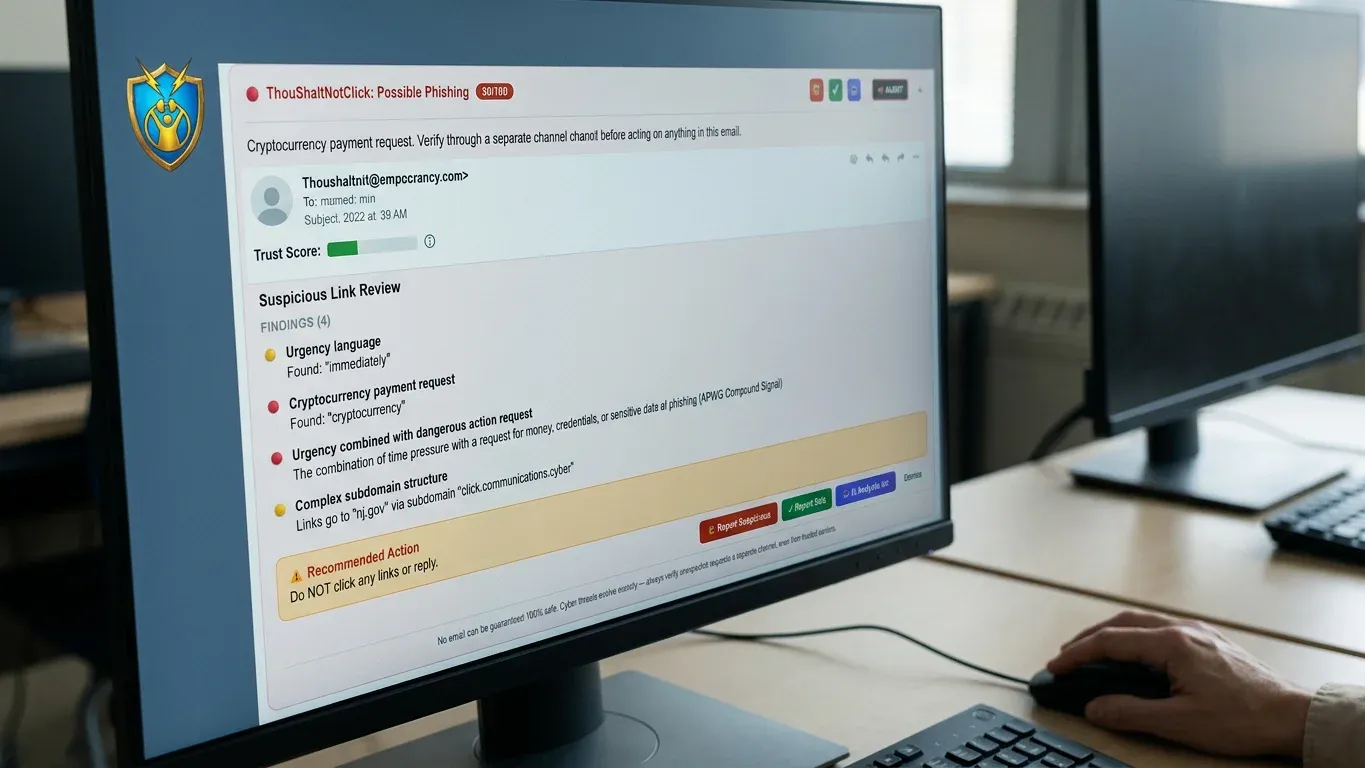
Staff need help at the point of decision, not a lecture after the mistake. When your staff needs that answer inside the inbox, ThouShaltNotClick gives the moment before the click a plain signal instead of another lecture.
The browser extension integrates with Gmail and Outlook on the web, including Microsoft 365 Outlook, and places a color-coded 0-100 trust score on every email. It scans links before a user clicks, opens suspicious URLs in a defanged Safe Preview sandbox, supports one-click phishing reporting, and warns when a typed password has appeared in a breach.
A pause is useful only if it arrives before the click.
This is the important shift: the goal is not to hide every threat from people. It is to make them sharper each time they make an email decision, without slowing down the work they were hired to do.
Proof that matters to your privacy review: In the browser extension, email content is analyzed on-device. Email subjects, bodies, and sender addresses are never transmitted to any server. Breach checking uses the same k-anonymity method trusted by 1Password, Firefox, and NIST 800-63B guidelines. The extension is built on Manifest V3 with client-side processing and zero trackers, backed by 6,113 development hours, 1,221 testing hours, four security audits, and 70+ bugs fixed before production.
That privacy boundary matters for schools, nonprofits, parishes, and smaller organizations that cannot afford a long fight over what happens to staff email content.
Supported browsers include Chrome, Edge, Brave, Opera, Vivaldi, and Arc. Firefox and Safari are on the roadmap, not supported now. The Outlook desktop add-in is in beta, and its scoring is different from the browser extension because it transmits up to 3,000 characters of the body for scoring.
If you want that safer pause inside the inbox, install free from the Chrome Web Store, or start a trial at thoushaltnotclick.com/signup.
A Simple Rule Before Anyone Clicks
A good staff rule should be short enough to remember when the email looks urgent. Try this: stop, inspect, verify, then act.
Teach staff to ask:
- Does the destination match the sender and the request?
- Is the message asking for a password, payment, approval, or download?
- Would I expect this file, invoice, signature request, or calendar invite today?
- Can I verify through a known-safe channel instead of replying or clicking?
- If I am unsure, can I report it in one click instead of guessing?
The rule is not “Thou Shalt Not Click” as a joke or a scolding. It is a reminder that the click deserves one clear breath of attention.
Your staff do not need to become security analysts. They need the right clue at the right time, and they need a way to Protect Your Inbox without turning every message into a committee meeting.
Frequently Asked Questions
How can I tell if a phishing link is safe without clicking it?
Hover over the link on desktop to see whether the real destination matches the visible text and sender. Be careful with shortened links, strange domain endings, misspellings, and links that ask you to sign in, pay, or download something from an unexpected page.
What should someone do if they already clicked a phishing link?
Report it to IT or the person responsible for systems right away, even if nothing obvious happened. If credentials were entered, change the password from a known-safe page, review multi-factor settings, watch for follow-up messages, and disconnect the device if IT advises it.
Can a real Google Drive share or calendar invite still be part of a scam?
Yes. Attackers can abuse real services because the email may genuinely come from Google or another trusted platform, while the content inside points to a scam. That is why staff should judge the request, destination, and context, not only the sending service.
Why do phishing links often lead to fake sign-in pages?
Fake sign-in pages turn a click into credential theft. The page copies a familiar login screen so the user willingly types a username, password, or code, which can then be used to access real accounts.
Do browser extensions need broad site permissions to scan links?
Some browser extensions request broad permissions because link scanning, QR checks, breach warnings, or page safety indicators may need to work across many websites. The key question is what the extension does with that access, how transparent it is, and whether it stores, sells, or transmits sensitive browsing or email data.
Does the browser extension send staff email content to a server?
In the browser extension, email content is analyzed on the user’s device. Email subjects, bodies, and sender addresses are never transmitted to any server by the browser extension.
If the risk you are trying to reduce is the rushed moment before a staff member clicks, put the warning where that moment actually happens. You can install free from the Chrome Web Store, or start a trial at thoushaltnotclick.com/signup.
Business Information Contact Card
ThouShaltNotClick (TSNC)
Phone: 1-800-556-1816
Address: Philadelphia area (nationwide service)