
How to check suspicious email links without clicking
When a staff member has an urgent message open and asks if it is safe, suspicious email links need a process that works before anyone gets curious with the mouse. The repeatable way to check them is…
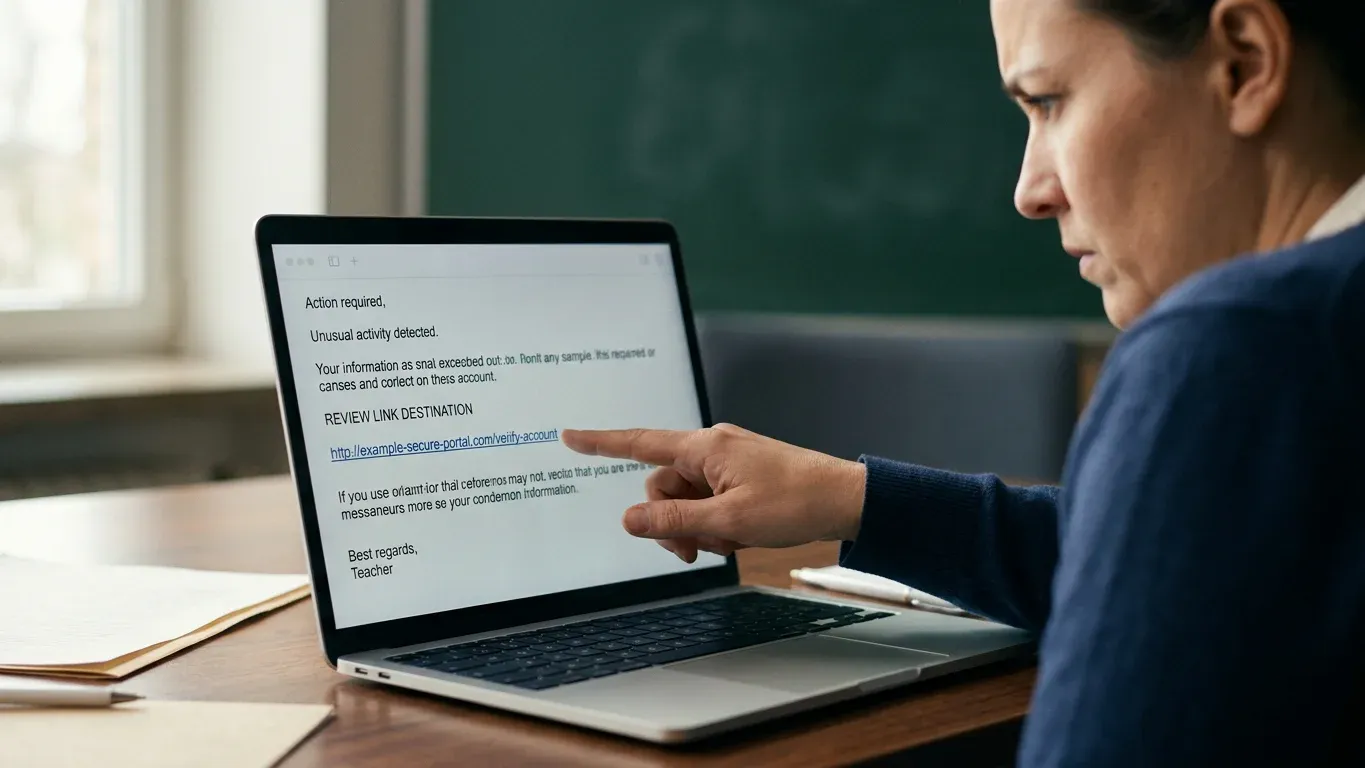
When a staff member has an urgent message open and asks if it is safe, suspicious email links need a process that works before anyone gets curious with the mouse. The repeatable way to check them is simple: slow the moment down, inspect the message, reveal the hidden address, judge the real domain, use safer tools when needed, then report what still smells wrong.
- Stop before the click: The safest move is also the one people skip when the email sounds official.
- Read the email around the link: A fake link often gives itself away before the URL does.
- Reveal the real destination: The visible words are not the promise; the hidden address is.
- Judge the domain and route: A URL reads like a street address once you know which part matters.
- Use a safe preview or scanner: Some links need a padded room, not a brave volunteer.
- Report and warn fast: One suspicious email can become everyone’s problem unless the first catch travels.
Suspicious email links get dangerous in the gap between hurry and proof
Your real problem is not that staff are careless. It is that the riskiest click often arrives dressed as normal work: a vendor invoice, a diocese notice, a school form, a calendar invite, or a DocuSign request that looks just official enough to rush.
Before anyone inspects a link, give them a short rule they can remember under pressure:
- Pause the action. Do not click, approve, sign, pay, log in, or forward it as safe yet.
- Preserve the evidence. Keep the email open, but do not interact with the link or attachment.
- Verify outside the email. If money, passwords, student data, payroll, or account access are involved, use a known phone number, saved bookmark, or separate app.
The pause is the control.
A good pause rule is not dramatic. It should feel like looking both ways before crossing the street, not like shutting down the whole neighborhood. Staff need permission to slow down without feeling silly.
Have four things ready before the next suspicious message appears:
- A plain staff rule: If the link asks for a password after a suspicious email, stop and verify through another channel.
- A safe reveal method: Hover, copy carefully, or use built-in link inspection without opening the destination.
- A sender-detail habit: Check reply-to, full address, and message context, not just the display name.
- A reporting path: One button, one mailbox, or one clear internal process for suspicious email.
The official-sounding email is where people rush because it feels rude to wait. That is exactly why the first step has to be boring, fast, and repeatable.
Before the URL, let the email tell on itself
The message around the link often gives you the first answer. A fake payment request, e-sign notice, or Google Drive share may stumble before you ever inspect the address.
Look for the small mismatches that show up when an attacker borrows a brand costume:
- Sender display name: A name like Business Office or Diocese Admin can be typed by anyone.
- Full sender address: The real address may be outside the expected domain.
- Reply-to address: Replies may route to a free mailbox or strange domain.
- Timing: Friday afternoon payment pressure deserves extra skepticism.
- Request type: Password reset, wire transfer, gift card, payroll change, and urgent signature requests are high-value bait.
- Attachment and link mismatch: A message claiming to be an invoice may send you to a login page instead.
- Tone: Odd greetings, forced urgency, and vague consequences are common tells.
Checking the email first is like checking the envelope before opening the door.
Logos, urgency, and familiar brand names are not proof. A scam can use a perfect-looking Microsoft, Google, Dropbox, DocuSign, or parish logo and still lead somewhere crooked.
This is also where you teach staff not to over-trust the From name. Attackers know people skim. They count on the brain seeing Father Michael, Superintendent Office, or Vendor Billing and filling in the rest like a bad autocorrect with confidence issues.
A quick context check can settle many messages without touching the link:
- Did you expect this file, signature request, or invoice?
- Does the sender usually contact you this way?
- Is the request normal for that person’s role?
- Would the real sender pressure you to bypass normal approval?
- Can you reach the service by using a saved bookmark instead?
If the email fails the context test, do not keep poking at the link to make it feel safer. Treat the message as suspicious and move toward reporting or independent verification.
Make the hidden destination show its face without opening the door
The text you see in an email is not necessarily where the link goes. A blue button that says View Document can point almost anywhere, which is why your next job is to reveal the real destination without visiting it.
Use the safest method your device and mail system allow:
- Hover without clicking on desktop. Place the pointer over the link and read the destination shown in the browser or mail window status area.
- Right-click and copy link address carefully. Copy the URL only if you have a safe place to inspect it, such as a text editor, not a browser address bar.
- Long-press on mobile with caution. Some apps preview the URL, but clumsy taps happen. If the phone interface feels risky, stop and report instead.
- Expand shortened links only with a trusted expander. Short links hide the destination by design, so do not open them directly to satisfy curiosity.
- Use message details when needed. Headers and authentication details can help IT see whether the sender passed basic checks.
You do not need to open a link to inspect where it claims to go.
When copying a suspicious URL, do not paste it into the browser bar. That is like carrying a mystery box to the front porch and then wondering why the doorbell rang.
Paste it into a plain text editor first. Look at it calmly. If the link is long, widen the window so the important parts are not hidden by line breaks or ellipses.
Be extra careful with buttons. Email buttons often hide long tracking links, redirect chains, or encoded destinations. If you cannot see the final destination clearly, the safe answer is not to click and hope. The safe answer is to verify another way.
For staff, keep the instruction short: hover, read, stop if unsure. Anything longer tends to fall apart in the moment.
A link is a street address if you know where to look
Once the real address is visible, the trick is knowing which part matters. Most people stare at the whole URL like it is a bowl of alphabet soup, but the useful clues are in predictable places.
The main domain is the key. In https://accounts.example.com/login, the main domain is example.com. The word before it, such as accounts, is a subdomain. Attackers use that confusion all the time.
Use this comparison when a link looks reassuring at first glance:
| Looks reassuring | What to check |
|---|---|
| HTTPS appears at the front | HTTPS means the connection is encrypted, not that the destination is honest. |
| A familiar brand appears in the subdomain | microsoft.secure-login.example.com belongs to example.com, not Microsoft. |
| The URL is shortened | A short link hides the destination until it is expanded safely. |
| The domain is almost right | Look for misspellings, extra words, swapped letters, or odd endings like .co instead of .com. |
| The path is very long | Tracking paths can be normal, but they can also hide redirects and encoded destinations. |
| A login page appears after an email click | Stop if the email was suspicious, then use a bookmark or known app instead. |
The domain is the front door. Everything after it is hallway.
Also watch for lookalike tricks. A link may use paypaI.com with a capital I instead of an L, or add words like secure, verify, billing, or portal to sound official. Those words do not make the site legitimate.
Redirects deserve caution too. A redirect is not always bad. Many legitimate services use them for tracking or sign-in flow. But when an urgent email sends staff through a strange chain of unrelated domains, you have enough smoke to stop and verify.
Here is a plain rule for the office wall: if the link asks you to sign in, pay, approve, or change account details, do not trust the email path. Go to the known site yourself.
That one habit prevents a lot of trouble without turning staff into security analysts.
Some URLs need a sandbox, not a brave click
Some suspicious email links remain unclear even after you reveal and read them. That is the point where a safer tool should take over, because being the volunteer who just checks real quick is not a job title anyone wants.
Use a safe-preview decision list:
- If the link is clearly wrong: Do not scan for entertainment. Report it and move on.
- If the domain is unfamiliar but the request might be real: Verify through a known channel before opening.
- If the link is shortened: Expand or scan with a trusted tool that does not visit the site in your normal browser session.
- If the email includes a QR code: Do not scan it with a personal phone camera when suspicion is high. QR codes can hide destinations just like buttons do.
- If the page asks for a password: Stop, close it, and use a saved bookmark or official app.
When not to paste a link into a public checker
Do not paste private, tokenized, or account-specific links into random online tools. Some legitimate links contain access tokens, document IDs, meeting keys, or personal identifiers, and sharing them with an unknown checker can create a different kind of exposure.
A safer scanner or sandbox should reduce risk, not spread the link around like gossip at a committee meeting.
When your staff needs that safer look inside the inbox itself, the browser extension from ThouShaltNotClick adds a trust score and Safe Preview to the moment where the decision happens. In Gmail web, Outlook on the web, and Microsoft 365 Outlook, supported Chromium browsers can show a 0-100 trust score, scan links before a click, and open suspicious URLs in a defanged Safe Preview where scripts are stripped and tracking pixels are highlighted.
That matters because the best safety step is the one sitting exactly where the risky choice happens. If a staff member has to leave the inbox, find a tool, copy a link, and decide what is safe to paste, the process may lose them right when you need it most.
A safe preview is not permission to trust the message; it is a safer way to decide whether the message deserves trust at all.
The same caution applies to QR codes and image-based tricks. A QR code in an email, poster attachment, or fake notice can point to a phishing page while hiding the address from normal hover checks. Use a safe QR scanner when suspicion is high, not the nearest phone camera and a shrug.
One good catch should protect more than one inbox
The final step is where many organizations lose ground. One person spots a bad link, closes the email, and feels relieved, while the same message keeps sitting in ten other inboxes like a rake in the grass.
Reporting should be as easy as possible:
- Report the email internally through your helpdesk, security mailbox, admin console, or one-click reporting tool.
- Include the reason in plain language, such as fake vendor invoice or login page from unexpected Google Drive share.
- Warn affected groups quickly if the message targets finance, leadership, school office staff, parish staff, or anyone with payment authority.
- Block or quarantine when appropriate using the tools your mail system provides.
- Preserve a sample so IT can review sender details, links, headers, and lookalike domains.
One person’s hesitation should become everyone else’s warning.
This is where in-context tools can remove a lot of manual scrambling. With TSNC’s browser extension, one-click phishing reporting can feed an admin review queue, and community threat warning badges can help turn a single report into broader awareness for the organization. It also flags risky patterns that ordinary spam filtering can miss, including fake e-sign emails, scam Google Drive shares, and malicious calendar invites.
Privacy confidence for the IT steward: In the browser extension, email analysis happens on the user’s device. Email subjects, bodies, and sender addresses are not transmitted to a server for scoring. The extension is built on Manifest V3 with client-side processing and zero trackers, and the on-device analysis is embedded and verifiable in the extension’s source code with a privacy-guarantee header in every file. That privacy statement applies to the browser extension; the Outlook desktop add-in is in beta and transmits up to 3,000 characters of the body for scoring.Install free from the Chrome Web Store, or start a trial at thoushaltnotclick.com/signup.
For an IT or operations lead, done does not mean every staff member becomes a URL expert. Done means the organization has a repeatable path that works under pressure.
What done looks like:
- Verified: The link was checked safely, and the request was confirmed through a known channel.
- Blocked: The message was identified as suspicious and removed or contained.
- Reported: IT received enough detail to review and respond.
- Shared: The first catch helped protect other inboxes before the next click.
- Remembered: Staff learned a simple rule at the moment they needed it.
The best training happens at the moment of decision. A short warning beside the actual email, a clear trust signal, and a safe way to preview the destination will usually beat another long memo titled Please Be Careful, which everyone agrees with and no one remembers on a busy Tuesday.
A practical safe-link routine is not about making people scared of their inbox. It is about giving them a small, sturdy handrail right where the stairs get slippery.
Frequently Asked Questions
Is it safe to hover over a suspicious link?
Hovering over a link on a desktop is generally a safe way to reveal the destination, as long as you do not click. Be careful on touchscreens and mobile devices, where a long press or tap can accidentally open the link.
Does HTTPS mean an email link is safe?
No. HTTPS means the connection between your browser and the site is encrypted. A phishing site can still use HTTPS, so you still need to check the domain, context, and request.
What should staff do if they already clicked a phishing link?
They should stop interacting with the page, disconnect if instructed by IT, report it immediately, and say whether they entered a password or downloaded anything. If credentials were entered, change the password from a trusted device or known site, review MFA, and have IT check the account for suspicious activity.
Should I copy suspicious links into online scanners?
Only use trusted tools, and avoid pasting private or account-specific links into random public checkers. Some links contain tokens or identifiers, so the safer move may be to report the message or use an approved sandbox.
Can a real Google Drive, calendar, or e-sign email still be a scam?
Yes. Attackers sometimes abuse real services because messages from those platforms can look familiar and may pass basic filters. Treat unexpected shares, invites, and signature requests with the same caution as any other link.
What if my staff use Firefox or Safari?
For TSNC’s browser extension, supported browsers are Chromium browsers: Chrome, Edge, Brave, Opera, Vivaldi, and Arc. Firefox and Safari are on the roadmap, not currently supported for the extension.
Once your team has a safe checking process, the next sensible move is to put that help where staff already decide whether to click. Install free from the Chrome Web Store, or start a trial at thoushaltnotclick.com/signup.
Business Information Contact Card
ThouShaltNotClick (TSNC)
1-800-556-1816
Philadelphia area (nationwide service)
thoushaltnotclick.com/signup