
How to Check a Suspicious Email Link Before Clicking
When a staff member is hovering over a suspicious email link in an urgent message, the job is not to panic or play detective for an hour. The job is to slow the moment down just enough to turn a…
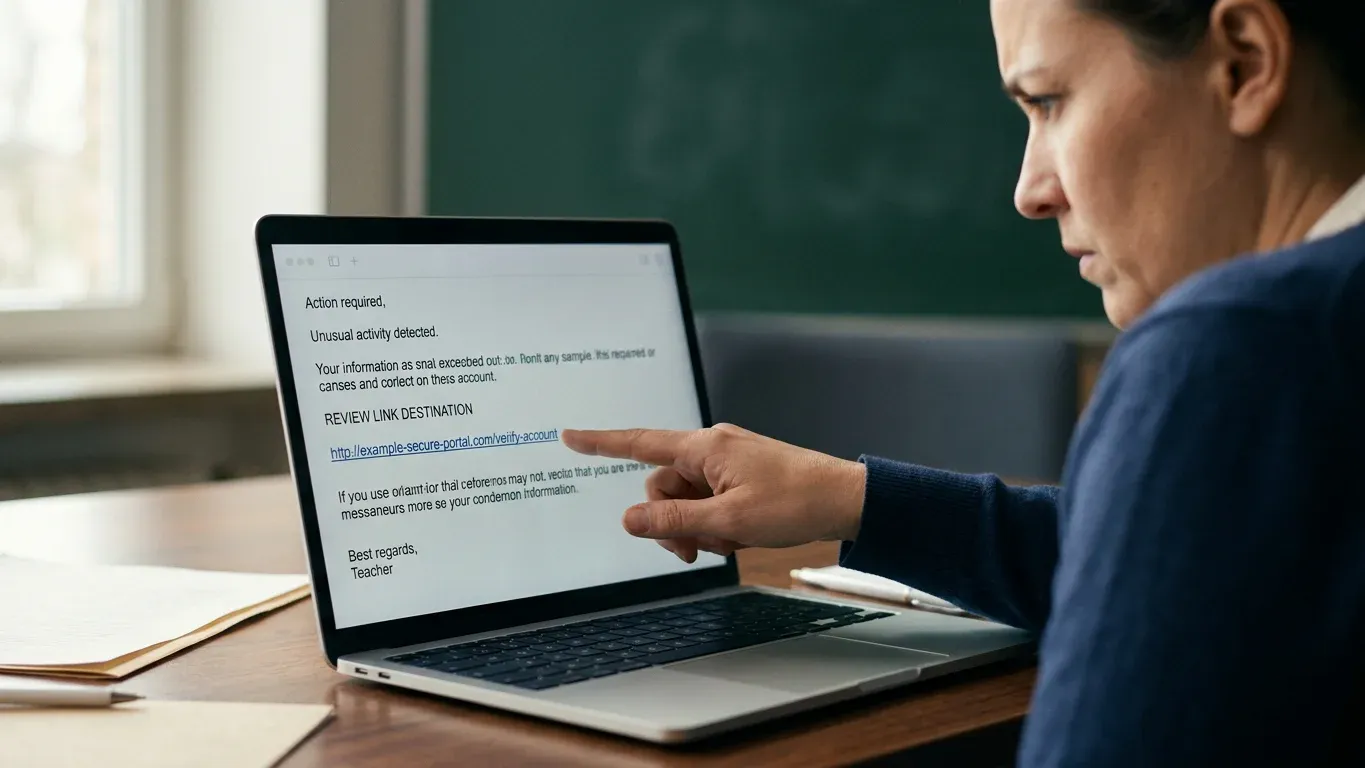
When a staff member is hovering over a suspicious email link in an urgent message, the job is not to panic or play detective for an hour. The job is to slow the moment down just enough to turn a guess into a safer decision.
Use this set every time:
Pause before the click: The few seconds before action are where the whole outcome changes.
Reveal the real destination: The friendly text may be the sign on the door, not the room it opens into.
Match the sender to the destination: A real-looking message can still point somewhere the sender would never use.
Check for tricks around the link: Shorteners, redirects, QR codes, and fake sign-in pages shift the ground under your feet.
Open risky links only in a safer view: Some pages deserve inspection without a normal browser session.
Report it before it spreads: The first person who spots the bad link can save the next ten from meeting it.
That is the whole rhythm: stop, expose, compare, inspect, contain, share. Nice and boring. Security loves boring.
A suspicious email link is safest before anyone touches it
The safest time to handle a suspicious email link is before it gets a real click, because nothing has loaded yet, no password has been typed, and no session cookie has been handed over.
Think of the email like a package on the front desk. You do not have to open it to read the label, notice the return address looks odd, or ask whether anyone was expecting it.
Before you touch the link, ask:
Was this expected? A surprise invoice, shared file, password reset, or urgent approval deserves a pause.
Is the tone pushing speed? Attackers love short deadlines because rushed people skip checks.
Is the request unusual for the sender? A principal, pastor, vendor, or finance lead asking for something new should trigger verification.
Would clicking require a sign-in, payment, file download, or approval? Those are higher-risk actions.
Can the request be verified another way? A known phone number, bookmarked site, or separate chat beats replying to the suspicious message.
The safest click is the one you have not made yet.
For staff, this step needs to feel simple, not like a pop quiz in cybersecurity. A good rule is: if the message is urgent and asks you to click, make the urgency prove itself.
That pause sets up the next question. The link text may say one thing, but the real destination may be wearing a costume.
The link text is the costume; the destination is the clue
You can often check where a link goes without clicking it, but you need to know what each method does and where it can fool you.
The visible link text is just decoration. It can say microsoft.com, View invoice, or Diocese document portal while the actual link points to a completely different address.
What you check | What it can tell you | What to watch for |
|---|---|---|
Visible link text | The words the sender wants you to trust | Text can be fake or misleading |
Hover destination | The real URL shown by the browser or mail app | Long URLs can hide the important part |
Copy link address | Lets you inspect the URL without opening it | Be careful not to paste it into the address bar and press Enter |
Status bar preview | Shows the destination at the bottom of the browser | Some apps shorten or hide details |
Hovering is usually safe because it does not open the page. On a desktop browser, place your mouse over the link and look at the destination that appears, often in the lower-left corner of the window.
Do not click. Just look.
On mobile, this gets trickier. A long press may preview or open actions depending on the app, device, and settings. If you are not sure what the phone will do, do not use the phone for the check. Move to a desktop, or forward the message to your security process if your organization has one.
Read the domain from right to left
The important part of a web address is the registered domain, usually the part right before .com, .org, .net, or another top-level domain.
For example:
login.microsoft.com.security-check.example.netbelongs to example.net, not Microsoft.accounts.google.com.verify-files.example.orgbelongs to example.org, not Google.schoolname.org.billingportal.combelongs to billingportal.com, not the school.
Attackers count on people reading links the same way they read sentences, from left to right. Domains reward the person who checks the ending.
A link can look official at the beginning and still be wrong at the end. Once you can see the destination, the next test is whether that destination matches the sender and the story.
Match the sender, the story, and the domain before you trust the request
A link can point to a real website and still be wrong for the message in front of you.
That is why the check is not just, is this a website? The better question is, does this sender, request, and destination belong together?
Use four matching points:
Sender domain: Look past the display name.
Jane Smithis not proof. Check the actual email address and domain.Reply-to address: If replies go somewhere different from the sender, slow down. It may be harmless, but it deserves a look.
Destination domain: The link should match the service or organization that supposedly sent it.
Request context: A link about payroll, banking, passwords, gift cards, file access, or signatures should fit a known process.
Picture a business-office administrator looking at a DocuSign-style invoice message. If the email says the document is from DocuSign but the link goes to a random domain with docusign stuffed into the middle, that is not a small typo. That is the smoke alarm chirping.
The same goes for urgent school, parish, or diocese messages. If a message claims to be from a known office but sends staff to a domain no one has used before, verify through a trusted channel before clicking.
Use a known path, not the path inside the suspicious message.
That means opening the vendor portal from a bookmark, typing the known website yourself, calling a known number, or starting a fresh message to a saved contact. Do not reply to the suspicious email and ask, is this real? If an attacker controls the thread, they will be delighted to reassure you.
A sender can also be spoofed. Broadly, email systems use authentication checks such as SPF, DKIM, and DMARC to help prove whether a sender is allowed to send for a domain. Those checks are useful, but staff should not need to decode mail headers during a busy Tuesday. For most people, the practical move is to compare the sender, link, and request, then escalate anything that does not line up.
And some tricks do not show up as a simple ugly link. They sit around the link, tucked inside the delivery method.
The sneaky stuff lives around the link, not just inside it
Attackers know staff are getting better at spotting weird URLs, so they hide the destination behind tools people already trust.
That does not mean every shared file or signature request is bad. It means the wrapper is not the proof.
Link trick | Why it works | Safer habit |
|---|---|---|
Shortened links | They hide the final destination | Treat them as unknown until expanded or scanned |
Lookalike domains | They swap letters or add words that feel official | Read the domain slowly, especially the ending |
Redirect chains | The first link may look tame while the final page is not | Use a scanner or safer preview before visiting |
QR codes | The destination is hidden until scanned | Treat QR codes like links, especially for sign-ins or payments |
Fake e-sign links | They copy trusted brands like DocuSign or Adobe Sign | Check the sending domain and expected workflow |
Cloud-share links | Real services can be used to deliver scam pages or files | Verify the sender and whether the share was expected |
Calendar invites | Invites can put links on a calendar without normal email suspicion | Do not trust an invite just because it appeared automatically |
A scam Google Drive share can come from Google infrastructure and still lead to a bad request. A calendar invite can look official because it lands where staff already manage their day. A QR code can bypass the normal habit of hovering because there is nothing to hover over.
That is the point of the trick: it changes the shape of the decision.
For QR codes in email, use extra caution. If the QR code leads to a sign-in page, payment page, file download, or password reset, verify the request through another channel. A QR code is just a link wearing a square hat.
Trusted tools can carry untrusted requests.
Once a link has enough smoke around it, the question changes. You are no longer asking whether to click normally. You are asking how to inspect it without giving it a normal chance to run.
When a link still feels wrong, inspect it without giving it a normal click
Some links should be checked in a way that does not load the page like an ordinary visit from an ordinary staff browser.
A normal click can hand the site useful information. It may reveal that the address is active, load tracking pixels, run scripts, prompt for credentials, or display a fake sign-in page that looks just good enough on a busy day.
Safer inspection options include:
A reputable link scanner: Paste the copied URL into a trusted scanning tool instead of opening it directly.
A sandbox or safe preview: Open the page in a controlled view that limits what the site can do.
A separate security review process: Send the message to IT or a security queue for analysis.
A known-good route: Visit the service from a bookmark or typed address and check whether the request appears there.
A safe preview helps one person inspect a risky page; reporting helps everyone else avoid needing to.
Do not paste a suspicious URL into your browser address bar unless your plan is to visit it. That sounds obvious until someone copies a link, opens a new tab, pastes it, and taps Enter out of muscle memory.
Muscle memory is a menace in a cardigan.
If the link asks for a password, stop. If the page looks like Microsoft, Google, a payroll portal, a bank, a donor platform, or an e-sign tool, do not sign in from that link. Open the site through a known path instead.
For organizations, the real win is making this safer path easy enough that staff actually use it. If the safe option takes ten steps, the unsafe option will win on a busy morning.
That leads to the final piece: the first person who notices the bad link should not have to become a one-person warning siren.
The first report should protect the next inbox too
A fast reporting path turns one staff member’s hesitation into a warning the whole organization can use.
This is where the hovering moment becomes an operations issue, not just a user-training issue. If five people receive the same fake invoice, the first report should help the next four before they click.
A practical reporting path should:
Take one click or very few clicks so staff do not give up.
Preserve the original message so IT can inspect headers, links, and attachments.
Notify the right person or queue without relying on hallway warnings.
Create a quick way to warn others when the threat is active.
Teach without shaming so staff keep reporting next time.
When your staff needs that check inside Gmail or Outlook instead of in a separate tab, ThouShaltNotClick’s browser extension puts a color-coded 0 to 100 trust score on every email, scans links before the click, opens suspicious URLs in a defanged Safe Preview sandbox, and gives users one-click phishing reporting into an admin review queue.
If that is the kind of low-friction guardrail your staff would actually use, install free from the Chrome Web Store, or start a trial at thoushaltnotclick.com/signup.
The point is not to replace judgment. The point is to put a clear signal right where the risky decision happens.
Privacy proof for the person who has to answer leadership: In the browser extension, email analysis happens entirely on the user’s device. Email subjects, bodies, and sender addresses are never transmitted to any server, so staff get link help without sending email content off the device for scoring.
That matters when you are responsible for both safety and privacy. A tool that creates a new privacy fight is not really low-friction, no matter how shiny the dashboard looks.
The browser extension also checks for issues that ordinary spam filters can miss, including fake e-sign messages, scam Google Drive shares, malicious calendar invites, QR codes, and breach warnings when a typed password has appeared in known compromised credential sets.
Speed matters, but trust matters too. The best reporting system is the one staff will use before the second inbox gets hit.
Use this decision point when the link is still a maybe
Not every suspicious link gives you a clean yes or no, so use a simple decision table instead of arguing with your gut.
Situation | Best move | Why |
|---|---|---|
Message is unexpected and link destination does not match the sender | Report and delete after review | The mismatch is enough to treat it as risky |
Message may be real, but money, passwords, or files are involved | Verify through a trusted channel | High-impact requests deserve a second path |
Link uses a shortener or redirect chain | Scan or inspect in a safer view | You need the final destination, not the first hop |
Staff member clicked but did not enter anything | Report, document, and monitor | IT may still need to check logs or block the site |
Staff member entered a password | Reset from a trusted site and notify IT | Credentials may already be exposed |
Attachment or download ran | Disconnect if instructed and escalate fast | Downloads can change the incident response path |
If someone already clicked, do not turn the moment into a courtroom scene. Get the facts quickly:
What email was clicked?
What link opened?
Was a password entered?
Was MFA approved?
Was anything downloaded or allowed to run?
What device and account were used?
Calm facts beat embarrassed silence.
For an IT steward, that tone is not just kindness. It is practical. People report faster when they know they will not be treated like the village idiot for making a human mistake.
The easy mistakes that make smart people click anyway
Good people click bad links because the message arrives at the wrong moment with the right pressure.
That is why the fix cannot be, tell everyone to be more careful. Careful is not a process. Careful is a sticky note that falls off the monitor.
Watch for these common mistakes:
Trusting the display name: A familiar name in bold does not prove the sender address is real.
Reading only the beginning of the URL: The official-looking words may be planted before the real domain.
Replying to verify: If the message is fake, you may be asking the attacker to confirm their own lie.
Using a phone for a hard check: Small screens hide details and make accidental taps easier.
Assuming real platforms mean real requests: Google, Microsoft, DocuSign, and calendar tools can be abused.
Letting urgency set the pace: A demand for speed is often the attacker steering the car.
One useful staff habit is to separate messages into two buckets:
Low-risk curiosity: newsletters, routine notices, harmless reading.
Action requests: sign in, pay, approve, download, share, reset, or reply with sensitive information.
Action requests get the full check.
That keeps the process from feeling heavy. You are not asking staff to inspect every lunch menu like it is a spy document. You are asking them to slow down when the email wants them to do something that matters.
What safe enough to move on actually looks like
A link is safe enough to use only when the sender, destination, request, and verification path all make sense together.
Use this final checklist before anyone clicks:
The email was expected, or the request was verified through a trusted channel.
The real destination domain matches the sender and service.
The request fits a known process.
The link is not hiding behind unexplained shorteners, redirects, QR codes, or odd domains.
Payment, password, file, and approval requests received extra review.
Suspicious messages were reported, not just deleted quietly.
Anyone who clicked or entered credentials told IT quickly.
The goal is not perfect suspicion. The goal is a repeatable pause that protects busy people from rushed decisions.
For staff, the phrase can be simple: Thou Shalt Not Click until the link, sender, and request agree. For the person responsible for the whole organization, the stronger habit is pairing that pause with tools that make safe reporting and link checking fast enough to use every day.
If your next budget conversation is really about fewer nervous hovers and fewer after-the-fact warnings, install free from the Chrome Web Store or start a trial at thoushaltnotclick.com/signup and make the safer choice the easy one.
Frequently Asked Questions
Is it safe to hover over a suspicious email link?
Hovering over a link on a desktop browser is usually safe because it does not open the destination. It only helps if you read the real URL carefully and avoid clicking by accident.
Can I copy a suspicious link without opening it?
Yes, you can usually right-click and copy the link address without opening it. Paste it into a plain text note or a trusted scanner, not into the browser address bar where one accidental Enter key can open it.
What should I do if I already clicked a suspicious link?
Tell IT or your security contact quickly, even if nothing obvious happened. If you entered a password, change it from the real site using a trusted path, check MFA and account activity, and follow your organization’s incident steps.
Are shortened links always dangerous?
No, shortened links are not always dangerous, but they hide the final destination. Treat them as unknown until they are expanded, scanned, or verified another way.
Can a real Google Drive or calendar invite still be part of a scam?
Yes. Attackers can abuse trusted platforms to send links, files, or calendar items that look familiar. A real platform does not prove the request itself is safe.
Should staff report suspicious emails even if they are not sure?
Yes. A quick report is better than a quiet guess, especially when the same message may be hitting several inboxes. The report gives IT a chance to block, warn, or confirm before more people click.
ThouShaltNotClick
Phone: 1-800-556-1816
Trial: thoushaltnotclick.com/signup
Install Availability: Free install available from the Chrome Web Store