
How Phishing Links Hide Where They Really Go in Email
You cannot stand beside every coworker when phishing links land in a normal-looking email and ask for one quiet click. The hard part is that the words on screen can look clean while the real…
You cannot stand beside every coworker when phishing links land in a normal-looking email and ask for one quiet click. The hard part is that the words on screen can look clean while the real destination is wearing a fake mustache and walking through the side door.
Phishing links hide their real destination by making the text, button, sender context, or visible domain look trustworthy while the actual URL points through another domain, redirect, shortened link, lookalike site, abused legitimate service, QR code, or fake login page. That leaves you with four deciding questions before staff click:
- Which part of the link tells the truth?
- Why do some dangerous links still look normal?
- Where does human judgment stop being enough for a whole staff?
- What guardrail helps without slowing everyone down?
The short answer is useful. The safer answer needs the link taken apart.
A Normal-Looking Link Can Still Be Wearing a Mask
You have probably seen the simple version: a blue link says “Microsoft password reset,” but it does not go to Microsoft. That mismatch is the oldest trick in the book, but it still works because people read words faster than they inspect destinations.
Phishing link: a link designed to trick someone into visiting a fake, harmful, or misleading destination so the attacker can steal credentials, install malware, collect payment details, or push the person into another scam.
The visible part is not the promise. It is only the label.
The text is the sign on the door; the URL is the room it actually opens.
That is why careful people get fooled too. In a busy inbox, a staff member sees a familiar vendor name, a believable button, and a request that fits the day. Their brain says, “That looks about right.” The link may be saying something else entirely.
What Phishing Links Are Really Trying to Hide
The detail that matters most is not always the whole URL. It is the relationship between the message, the domain, and the action the page asks for.
Attackers want staff to trust one clue and miss the rest. A message might borrow the tone of a diocese update, the logo of an e-signature tool, or the layout of a Microsoft login page. Each clue lowers suspicion by a notch.
Here is the basic split:
- Visible text: what the person sees in the email, such as “View invoice.”
- Actual destination: the URL the browser opens after the click.
- Final page behavior: what happens after redirects, scripts, and fake login forms load.
A link can pass the first glance and still fail the second. That is the gap attackers live in.
Why One Bad Click Feels Bigger When You Own the Network
Your concern is not that one person will feel embarrassed. Your concern is that one click becomes your afternoon, your incident log, and possibly the whole organization’s problem.
The riskiest click is often the one that looks boring enough to approve.
A staff member about to click an urgent diocese email may not be reckless. They may be responding to a normal work request in the middle of a normal day. That is exactly why these messages travel well inside organizations.
For a home user, the damage may stop at one account. For a small business, nonprofit, or parish, a stolen login can lead to shared drives, payroll records, vendor payment changes, email forwarding rules, or more phishing sent from a real internal account.
The click is personal. The blast radius is not.
That is why “be careful” is not a complete security plan. It asks every staff member to become a part-time URL analyst while still doing their actual job.
The Tricks That Make the Destination Disappear
You do not need staff to memorize every trick, but you do need to know the common hiding places. Once you see the pattern, the link stops looking like magic and starts looking like plumbing.
- Mismatched anchor text: The email says one thing, but the link points somewhere else. “View file” may lead to a fake login page.
- Lookalike domains: The domain swaps letters, adds hyphens, or uses a close cousin of the real name. At a glance, “micros0ft” or “secure-microsoft-login.example” can slide past tired eyes.
- Shortened URLs: Link shorteners are not always bad, but they hide the destination. That makes them worth extra checking in work email.
- Redirect chains: The first URL may look harmless, then bounce through one or more pages before landing somewhere dangerous.
- Legitimate service abuse: Attackers use real platforms for shares, forms, calendar invites, or file notifications because those messages often look familiar and may come from trusted infrastructure.
- QR codes: A QR code moves the decision from the work computer to a phone, where link inspection is harder and security controls may be thinner.
- Fake login pages: The link’s real goal may be to collect a password, especially if the page copies Microsoft, Google, DocuSign, or another common sign-in screen.
The nastiest part is that these tricks stack. A fake DocuSign invoice can use a real-looking sender name, a shortened link, a redirect, and a copied login page all in one neat little package.
The Link Clues Worth Checking Before Anyone Clicks
The useful habit is not “stare harder.” It is knowing which clues deserve attention and what they mean.
| What staff can see | What it may actually mean | What to do next |
|---|---|---|
| Visible text or button | The label may be unrelated to the destination | Check the actual URL before trusting the wording |
| Sender name | A display name can be spoofed or misleading | Look at the sender address and whether the request fits |
| Domain | A lookalike may borrow a trusted brand’s name | Read the main domain carefully, not just the familiar word |
| Path after the domain | Long strings can hide tracking, redirects, or odd destinations | Do not let a familiar word deep in the path replace the domain check |
| Redirect behavior | The first link may not be the final page | Treat unexpected jumps as suspicious |
| Password request | The page may be harvesting credentials | Stop and verify through a known login route |
One rule helps: the real domain has more authority than the prettiest button in the email.
When “It Came From a Real Service” Is the Trap
The confusing cases are the ones that do not look like junk at all. A scam Google Drive share or calendar invite may come through systems people already trust, so the inbox feels safer than it is.
Hovering helps, but it is not a force field
Hovering over a link can show the target URL, and that is useful. It cannot prove the final page is safe, show every redirect clearly, or help much with QR codes on a phone.
A quick way to set expectations:
- Hovering can reveal a mismatch between link text and the first URL.
- Hovering may not reveal what happens after redirects or scripts run.
- Hovering does not solve fake shares, calendar invites, or e-sign lures by itself.
A “review and sign” DocuSign invoice is a good example. The staff member is not thinking about URL structure. They are thinking, “Is this the invoice everyone is waiting on?” That is the exact moment a fake e-sign email wants.
A message can come from a familiar workflow and still push staff toward the wrong login page.
Short, repeated reminders tied to real examples usually work better than one annual lecture. But reminders still depend on the person catching the clue at the right second.
Where Real-Time Protection Changes the Click
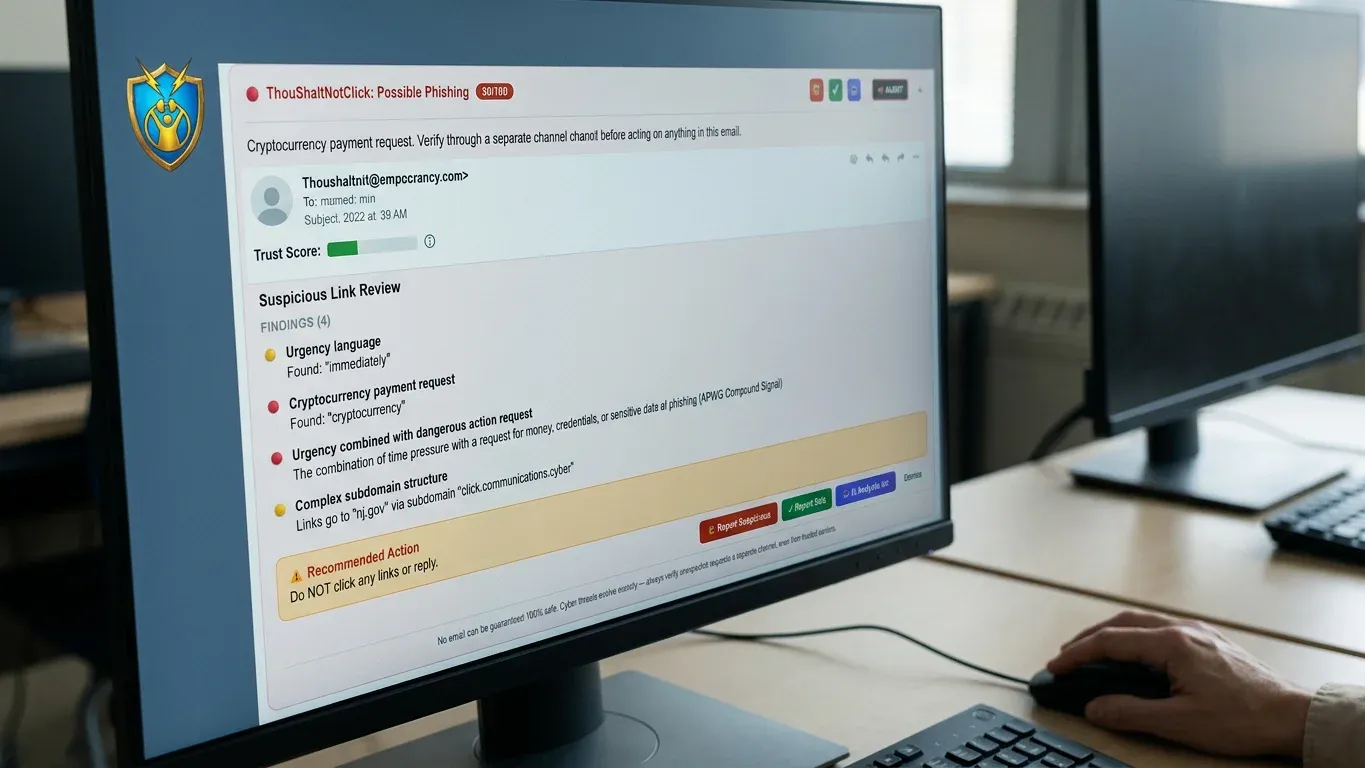
At some point, you need a guardrail that meets staff inside the decision, not three hours later in a “please delete that email” message. When your staff need a clear answer before the click, a browser extension like ThouShaltNotClick can put the warning where the risk actually happens.
The browser extension integrates with Gmail and Outlook on the web and gives each email a color-coded trust score from 0 to 100. It also scans links before a user clicks, opens suspicious URLs in a defanged Safe Preview sandbox, and lets staff report phishing with one click into an admin review queue.
If you want to test that kind of before-the-click protection, install free from the Chrome Web Store, or start a trial at thoushaltnotclick.com/signup.
The practical value is not that people stop thinking. It is that they get a second set of eyes at the exact moment their first set is busy.
- Trust score: a fast green, yellow, or red-style read on every supported email.
- Link scanner: checks links for phishing indicators, malicious redirects, and domain spoofing before the click.
- Safe Preview: opens suspicious URLs in a defanged view with scripts stripped and tracking pixels highlighted.
- One-click reporting: moves suspicious messages to the admin review flow without a messy email chain.
- Breach alerts: warns when a typed password has appeared in a known data breach, using Have I Been Pwned with k-anonymity checking.
Supported browsers are Chromium-based options: Chrome, Edge, Brave, Opera, Vivaldi, and Arc. Firefox and Safari are on the roadmap, and the Outlook desktop add-in is in beta, so do not treat it as the same thing as the browser extension.
The Privacy Test Your Link Scanner Has to Pass
You should ask one blunt question before putting any inbox tool in front of staff: where does the email content go?
For the TSNC browser extension, analysis happens on the user’s device. Email subjects, bodies, and sender addresses are never transmitted to any server in the browser extension.
Reader-confidence note: The browser extension is built on Manifest V3 with client-side processing and zero trackers. Its on-device analysis is embedded and verifiable in the extension’s source code, with a privacy-guarantee header in every file. Breach checking uses the k-anonymity method trusted by 1Password, Firefox, and NIST 800-63B guidance.
That matters because privacy is not a side feature when the tool sits in an inbox. A guardrail that creates a new data concern is not much of a guardrail.
The clean version is simple: help staff judge risky email without shipping their email content somewhere else to do it.
The Safer Habit Is Knowing Before the Click
The goal is not to turn every coworker into a security engineer. The goal is to make the safe choice visible before a normal person makes a normal click.
“Thou Shalt Not Click” works best as a posture, not a scolding. It means pause long enough to check the destination, question the context, and use a tool that can catch what tired eyes miss.
Protect Your Inbox starts with knowing where the link really goes.
Frequently Asked Questions
Are phishing links always obvious?
No. Many are built to look boring, routine, and familiar because that lowers suspicion. The more a message resembles a normal workflow, the more important it is to check the destination before acting.
Is hovering over a link enough to stay safe?
Hovering helps, but it is not enough by itself. It may show the first URL, but it may not reveal the final landing page after redirects, the behavior of the page, or the risk behind a QR code.
Can a real Google Drive share or calendar invite still be part of a phishing attempt?
Yes. Attackers sometimes abuse real services because people trust those notifications. A message coming through a familiar platform does not automatically mean the request, link, or login page is safe.
What should staff do when they are not sure about a link?
They should stop, avoid entering passwords, report the message through the organization’s normal process, and verify through a known channel instead of replying to the email. A quick pause beats a rushed cleanup.
What should we do after someone clicked a suspicious link?
Follow your incident process, preserve the email, and report it internally right away. If credentials were entered, change the password, review account activity, and disconnect the device if your IT process calls for it.
Which browsers and inboxes are supported by the browser extension?
The browser extension supports Gmail web, Outlook on the web, and Microsoft 365 Outlook in Chromium browsers including Chrome, Edge, Brave, Opera, Vivaldi, and Arc. Firefox and Safari are on the roadmap.
If your staff need a clearer answer in the inbox before a click, you can install the browser extension free from the Chrome Web Store or start a trial at thoushaltnotclick.com/signup.
ThouShaltNotClick (TSNC)
1-800-556-1816
thoushaltnotclick.com/signup